
Advanced crawl configuration
Settings explained with screenshots: rendering, scope, limits, Shopify and report templates.
On this page
- 1. Choose the engine and open settings
- 2. Essential: speed, rendering and volume
- 3. Exploration: choose what to follow
- 4. Advanced: avoid endless URL spaces
- 5. Network: Shopify and protected access
- 6. Templates: prepare the reports
- 7. During the crawl: pause and adjust rules
- 8. Three practical configurations
- When results differ from your expectations
New to crawling? Start with Your first crawl. For a blocked audit, see Errors, IP allowlisting and user agents.
Cuik Spider explores your site, checks its pages and resources, then feeds your Cuik audit and reports. Use this guide to choose what to crawl, how fast and with which rendering mode.
Cuik Spider is in beta. Errors, interruptions or crashes are still possible. Start with a limited scope and check the results. The Classic engine remains available.
1. Choose the engine and open settings
In the crawl list, enter your starting URL, choose Spider · bêta, then Paramètres. Save your settings before selecting Lancer le crawl or Recrawler.
 Screenshots show the current French settings interface with demonstration data, not customer data. Click to enlarge.
Preferences are saved in your browser, separately for each engine. The “Configuration active” summary shows the selected settings. Proxy and access credentials are exceptions explained below.
Classic or Spider? Classic is the original engine. Spider adds live crawl progress, pause, resume and changes to certain rules while paused. This guide covers the Spider launcher; some options depend on your plan. If Spider is missing, the beta is not enabled in your environment.
2. Essential: speed, rendering and volume
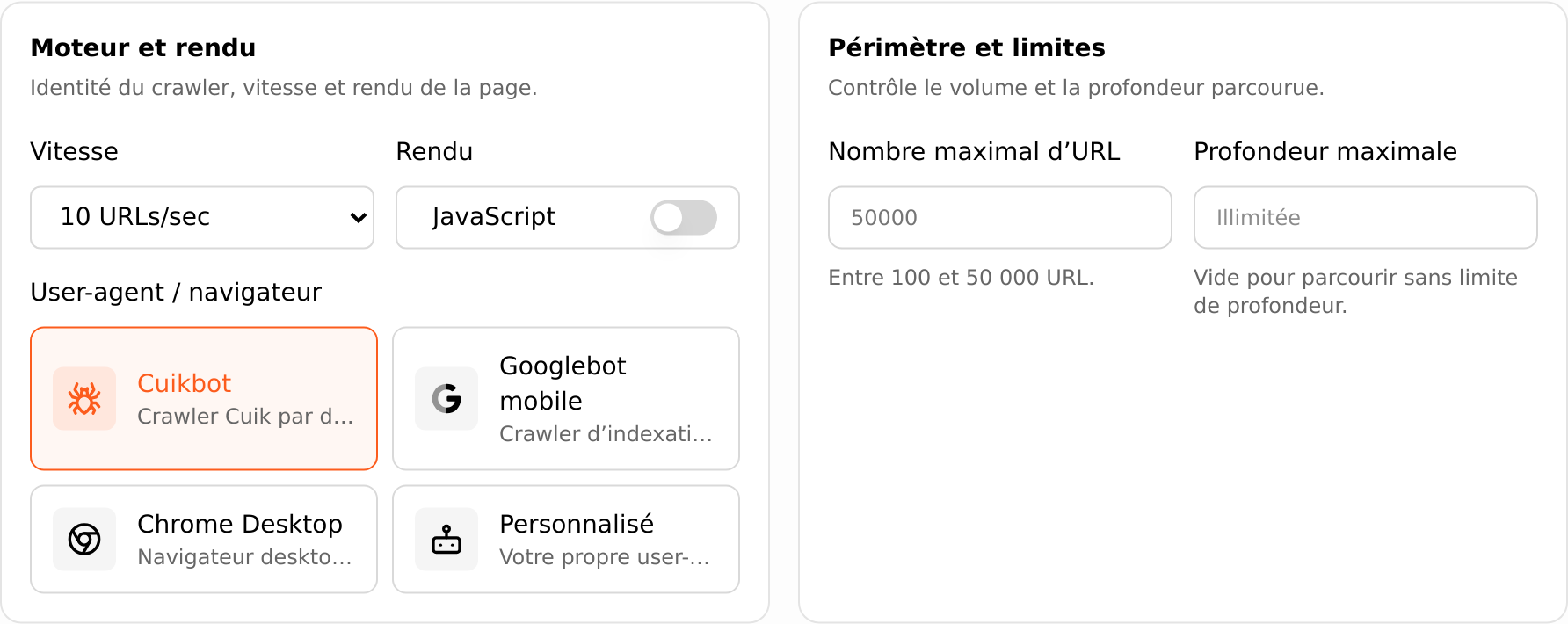
| Setting | What it changes | Initial Spider value |
|---|---|---|
| Speed | Requested rate: 1, 2, 4, 5, 10 or 20 URLs/s, or Unlimited. Actual throughput depends on the site, rendering and available capacity. | 10 URLs/s |
| JavaScript rendering | Uses a browser for pages whose content depends on JavaScript. More resource-intensive than a plain HTML crawl. | Off |
| User-agent / browser | Announced identity: Cuikbot, Googlebot mobile, Chrome Desktop or a custom string. | Cuikbot |
| Maximum URLs | Shared budget, from 100 to 50,000 in the launcher. Pages, resources and external checks all consume it. This is not a guaranteed number of HTML pages. | 50,000 |
| Maximum depth | Number of link levels from the starting URL, which is at depth 0. From 1 to 50; empty means unlimited. It does not count folders in the address. | Empty |
Example: for an initial small-site audit, try 2 URLs/s and a maximum of 1,000 URLs. If expected text or links are missing because they load through JavaScript, compare with a crawl that has rendering enabled.
Choosing Googlebot mobile does not turn Cuik into Google's crawler or guarantee Google's indexing behaviour. Choosing Chrome Desktop does not enable JavaScript or the Chrome network fingerprint either: these are separate settings.
3. Exploration: choose what to follow
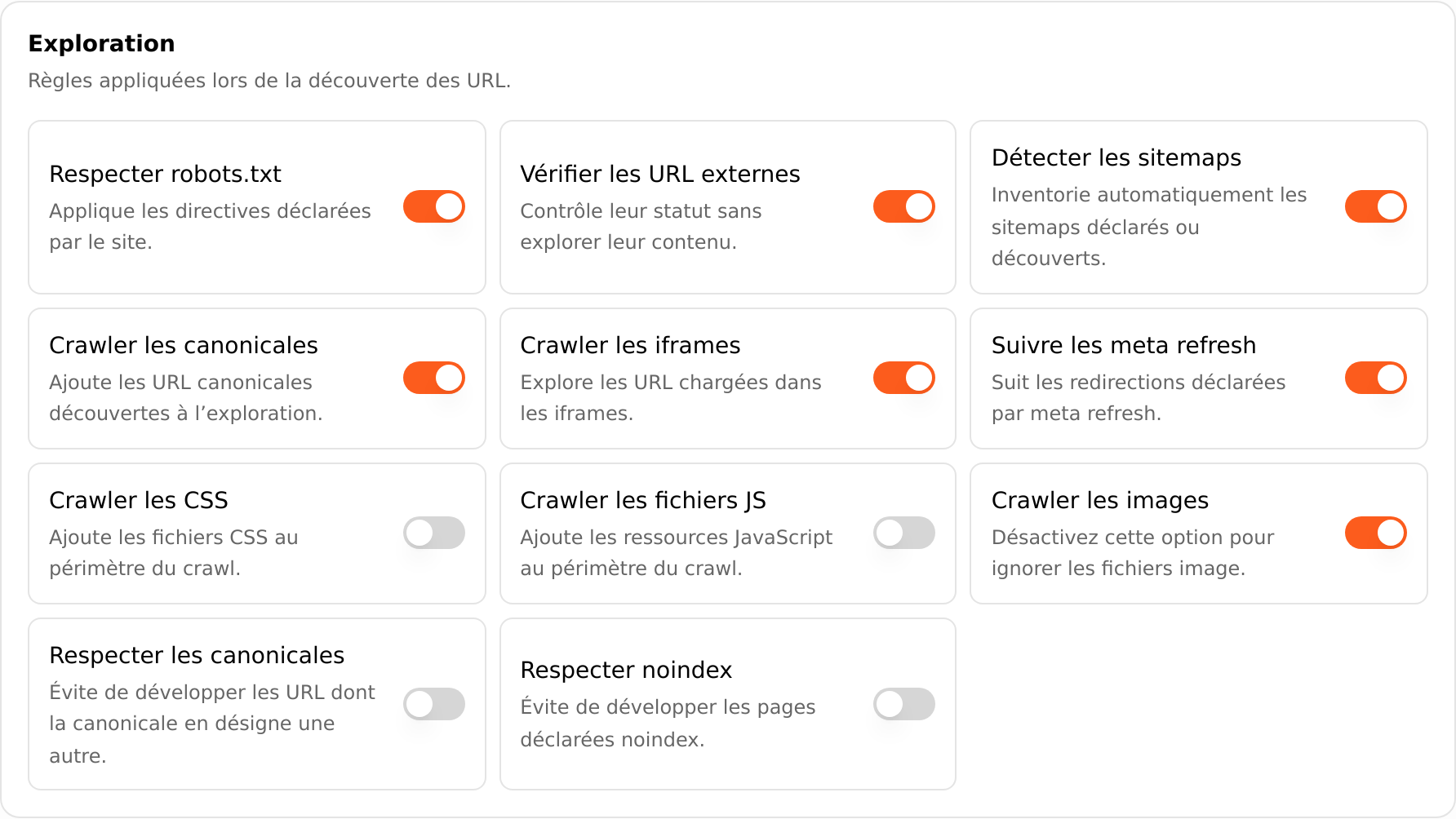
| Option | Purpose | Initially |
|---|---|---|
| Respect robots.txt | Applies the site's rules to internal URLs. Keep this on for a normal audit; only disable it for an authorised diagnostic. | On |
| Respect Crawl-delay | Applies the request delay specified by the site, independently of the other robots.txt rules. | Disabled |
| Check external URLs | Checks their status without exploring links from those other sites. | On |
| Discover sitemaps | Inventories declared or discovered sitemaps for comparison with the crawl. Does not automatically queue every sitemap URL for crawling. | On |
| Crawl canonicals | Adds discovered canonical target URLs, within the permitted scope. | On |
| Crawl iframes | Follows the addresses of documents embedded in iframes. | On |
| Follow meta refresh | Follows redirects declared through a meta refresh tag. | On |
| Crawl CSS | Also checks discovered stylesheet files. | Off |
| Crawl JS files | Also checks discovered JavaScript files. Does not execute them: JavaScript rendering is a separate option. | Off |
| Crawl images | Collects image files and their information. | On |
| Respect canonicals | Stops expanding links from a page whose canonical points to another URL. The page may already have been visited. | Off |
| Respect noindex | Stops expanding links from pages marked noindex. This does not mean those pages disappear from the report. | Off |
The two canonical options work together. “Crawl” discovers the target; “Respect” limits exploration from the canonicalised page. Leaving “Respect” off can help when investigating duplicates and their links.
4. Advanced: avoid endless URL spaces
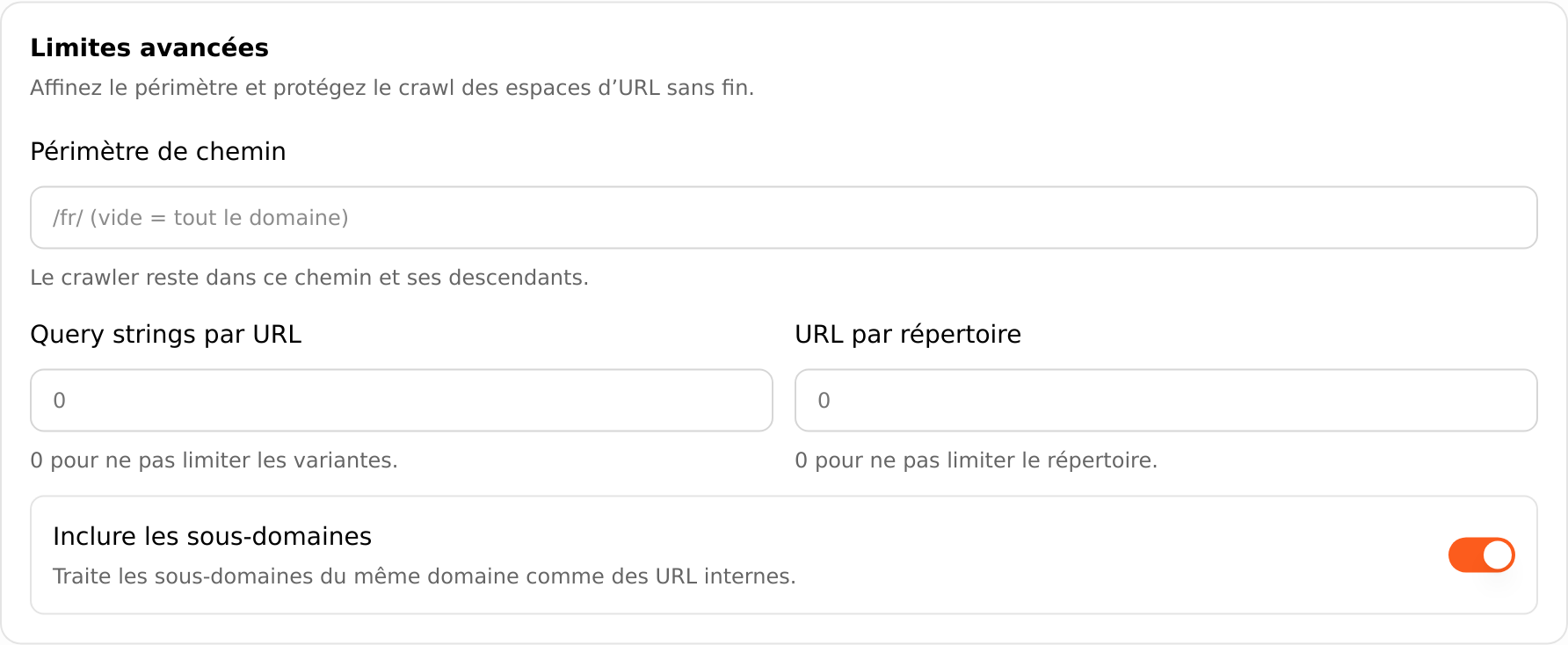
| Setting | How to use it |
|---|---|
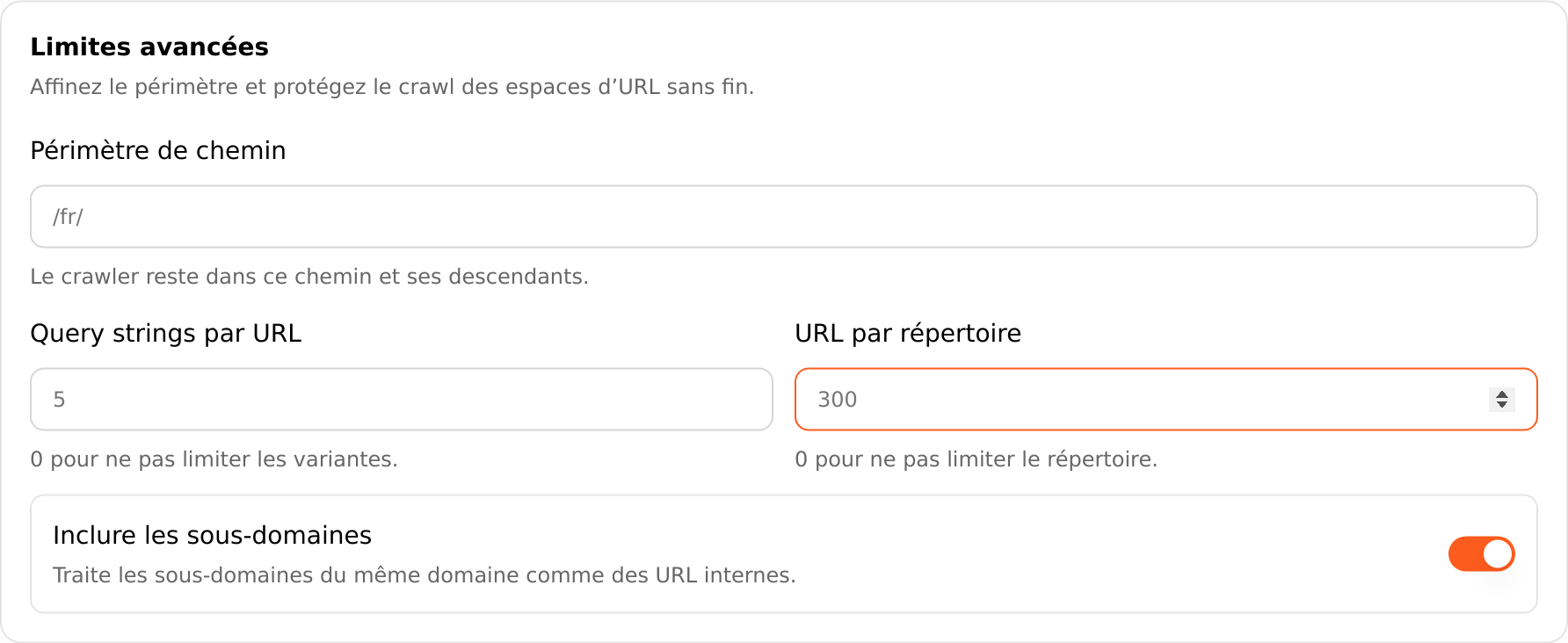
| Path scope | /fr/ restricts pages to this branch. The starting URL must also be inside it, for example https://example.com/fr/. Empty means no path restriction. Do not enter a domain, query string or fragment. |
| Query strings per URL | Caps parameterised variants for the same base address. 5 allows up to five variants such as /product?colour=…, not five parameters per URL. 0 means unlimited. |
| URLs per directory | Caps accepted internal page URLs in the same parent directory. Try 300 to contain an endless calendar or catalogue. 0 means unlimited. It does not select the most important pages. |
| Include subdomains | Treats subdomains of the same domain as internal. On initially; turn it off if a blog or store should not be explored as part of the main site. |
Variant and directory limits accept URLs as they are discovered: the result is a partial audit, not a guaranteed representative sample.
Path scope remains restricted to the starting host even when subdomains are enabled. Resources of included pages, such as images and CSS, keep their own rules. Images are not blocked by the page depth limit.
5. Network: Shopify and protected access
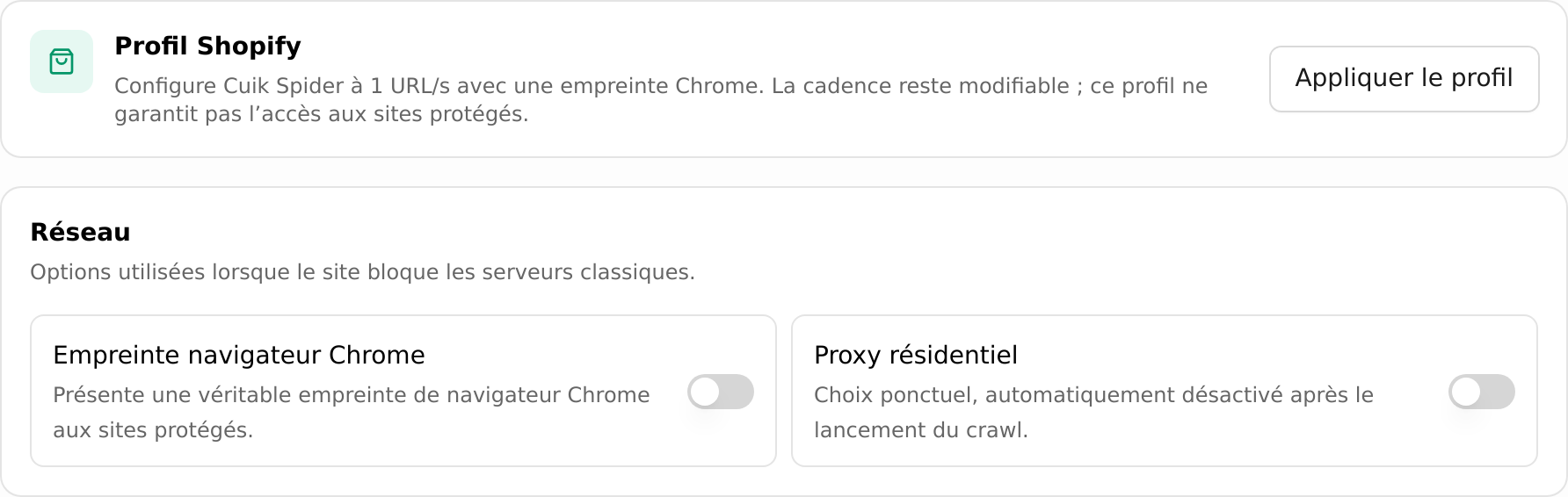
Shopify profile. “Appliquer le profil” selects Spider, sets 1 URL/s, enables the Chrome fingerprint and disables JavaScript rendering. You can then change the speed. This profile does not guarantee access to a protected store.
Chrome browser fingerprint. Adjusts the network characteristics of HTTP requests. Available without JavaScript rendering; the launcher disables this option when rendering is enabled. It does not replace the site owner's authorisation.
IP connection. IPv4 is the default. Choose Automatic (IPv4 / IPv6) or IPv6 only when the site and connection support it. The setting covers pages, JavaScript rendering and resources; it is disabled with a residential proxy, which selects its own connection to the site.
Residential proxy. Routes the crawl through the residential connection configured by Cuik. This is a per-launch choice: it is not remembered for your next visit and resets after a successful launch. Enable it only when needed.
Proxy as a last resort. On Spider, this one-off option allows a residential proxy probe after 15- and 30-minute pauses caused by site rate limiting. If the probe succeeds, the crawl resumes at a lower rate. The option is disabled when the whole crawl already uses the proxy and resets after launch.
Shopify signature and Basic Auth
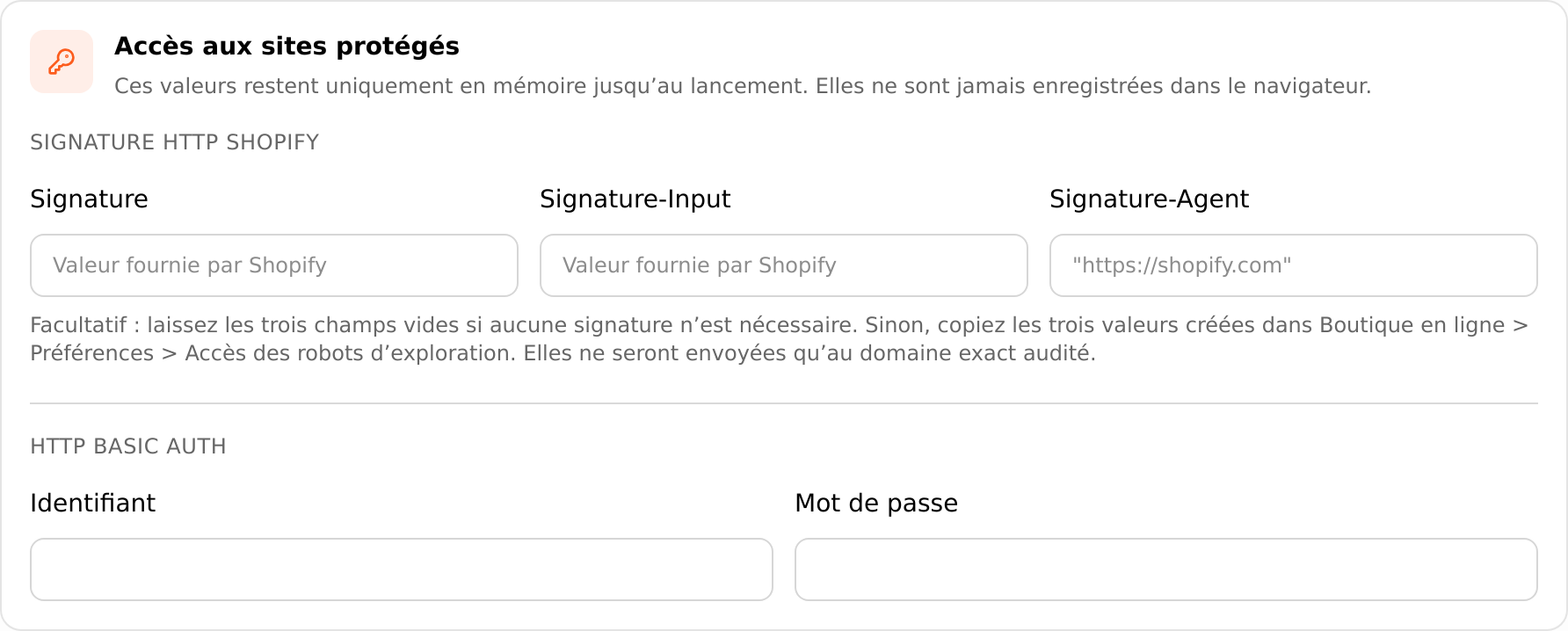
- Shopify HTTP signature: leave all three fields empty when unnecessary. Otherwise, in Shopify open Online Store → Preferences → Crawler access, create a signature for the audited domain, then enter Signature, Signature-Input and Signature-Agent. All three values are required; preserve the supplied format, including the quotes around
"https://shopify.com". Replace expired signatures. Official Shopify guide. - HTTP Basic Auth: enter both the username and password of a site protected with HTTP authentication. This is not a WordPress login form or a Shopify storefront password.
These secrets are not saved in browser storage. They are transmitted when launching the crawl for the authorised site; do not share them in screenshots or public tickets.
6. Templates: prepare the reports
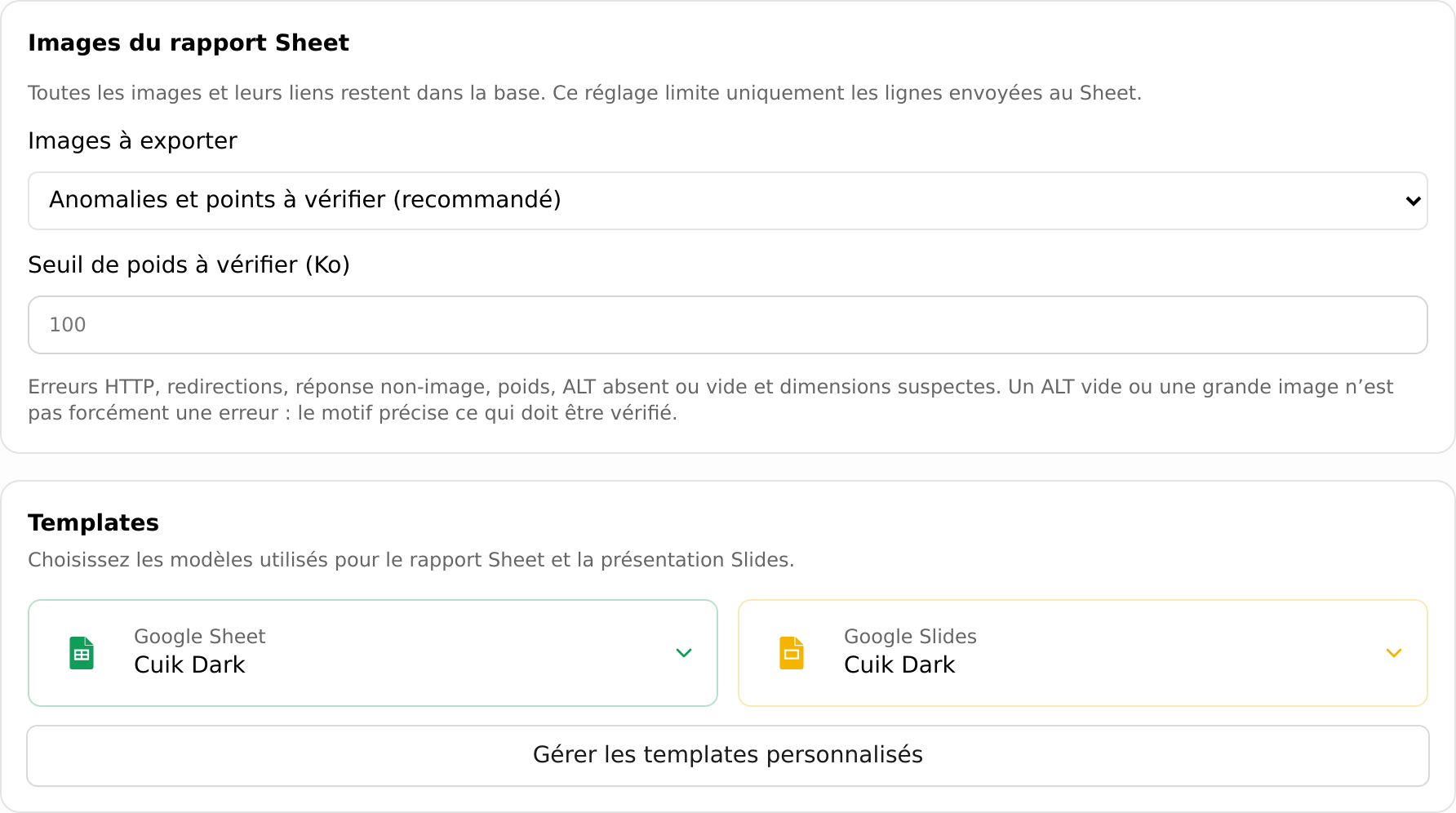
Images to export only affects rows in the Sheet report, not image collection:
- Issues and items to review, the default: HTTP errors, redirects, non-image responses, weight, missing or empty ALT, and suspicious dimensions.
- All images: a larger export.
- No images in the Sheet: no image rows in this document; collected data remains in the audit.
The initial weight threshold to review is 100 KB. It flags images for review rather than blocking downloads. An empty ALT can be intentional for a decorative image; a large image is not automatically an error.
Then choose the Sheet template and Slides template: Cuik Dark, Cuik Light or custom templates if your plan allows them. These choices affect the deliverables' presentation, not the crawl scope. Document generation may continue after URL collection ends.
7. During the crawl: pause and adjust rules
Open the crawl to see processed URLs and those still queued. The total grows as URLs are discovered; it is not a complete inventory known in advance.
- Select Pause and wait for active requests to finish.
- Open Rectifier les règles to change the scope, resource types, certain limits or inclusion/exclusion regexes.
- Select Prévisualiser l’impact. Cuik distinguishes URLs removed from the queue from those already collected.
- Optionally enable Nettoyer aussi les données déjà collectées to remove affected URLs and their relationships from the current report. Otherwise, previously collected data is kept.
- Apply the changes, then select Reprendre. Applying rules does not automatically resume the crawl.
Enter one regex per line in this editor, for example /search\? to exclude search URLs. These fields are not in the initial settings modal. Some changes only affect future discoveries; the preview explains this. Changing the engine, rendering or access settings requires a new crawl.
8. Three practical configurations
Audit only the French version
Start at https://example.com/fr/ with path scope /fr/. For a bounded test: 2 URLs/s, a maximum of 1,000 URLs, five variants per URL and 300 pages per directory. These limits are examples to adapt to your site.
Check a Shopify store
Apply the Shopify profile, start with 500 URLs and check a few product pages. If requests are refused, verify permissions and the signature for the correct domain before trying again. Avoid combining every network setting without knowing which one is needed.
Investigate a difference between the browser and audit
Test the same starting URL with identical limits, once without JavaScript rendering and once with it. Compare the text, links and tags actually found. Enabling “Crawl JS files” alone does not answer this question.
When results differ from your expectations
| Symptom | Check first |
|---|---|
| Fewer pages than expected | Budget shared with resources, depth, path, robots.txt, variant limits and links actually discovered. Discovering a sitemap does not force every URL in it to be crawled. |
| Many nearly identical URLs | Sorting parameters, filters, pagination or calendars. Use advanced limits while accounting for their effect on coverage. |
| 403 or 429 | Authorised access, correct domain/signature and excessive request rate. Slow down; neither proxy nor fingerprint guarantees a fix. |
| Missing content | JavaScript rendering, authentication and starting URL. |
| Disabled options | Account plan or incompatibility between JavaScript rendering and the Chrome fingerprint. |
When contacting support, include the crawl link, affected URL, expected result and settings used, without usernames, passwords or signatures.