
Project management
Organise cards, ask questions and request approval. A practical SEO example and screenshots from Cuik.
On this page
Organise workspace activity with cards, questions and approvals. Use cards on their own or group them into an action plan; the method is optional.
Create a card
Write straight into the board
At the bottom of a column, choose Add a card. Enter the title and select Add. Open the card to add details.
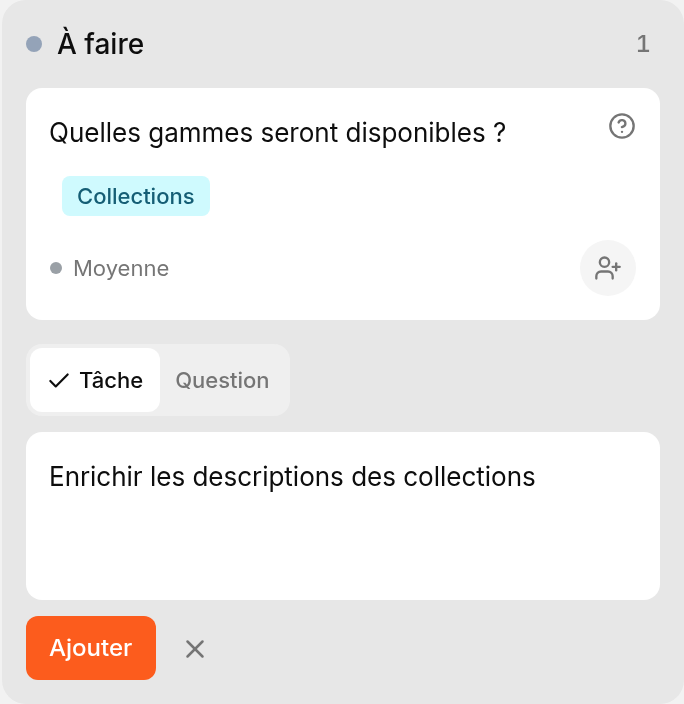 Cuik interface in French · example entry.
Organise the action plan
Goal
The change the client wants to see.
Mission
Group cards when the work needs it. Optional.
Cards
Actions to complete and questions to resolve.
- Is the outcome changing? Track qualified enquiries from organic traffic over an agreed period.
- Are we moving in that direction? Observe visibility for target pages and relevant visits.
Measure, then adjust the plan. Completed cards describe the work; indicators assess its outcome.
The action plan brings together the chosen work and its priorities. A card is an action that can be assigned and completed; a mission groups several cards that need coordinating.
Rewriting one description can be a card. Updating twenty collections with separate writing, review and publishing work can become a mission.
In the workspace
- Write the goal and chosen measure in a project note.
- Group cards with a subject, such as “Collections”. A subject can also be an ongoing theme, such as “Technical”.
- Use monitoring and reports to check results.
Goals and missions are organisational concepts: Cuik does not yet have a dedicated hierarchy or automatically linked indicators.
Example: improve collection pages
Increase collection sales
Goal: grow sales associated with organic traffic.
Improve priority collection pages
Optional mission · “Collections” subject in Cuik.
Split the work into cards
- Task Review internal links to the collections.
- Task Improve the descriptions. To approve · Agreement on the copy, on this same card.
- Question Which ranges will be available?
- Outcome Orders or revenue: document attribution, scope and period.
- Signals Clicks to collections, then visits to product pages.
Task, question or approval?
| Need | Use in Cuik | Example |
|---|---|---|
| Complete work. | Task | Improve collection descriptions. |
| Get information or make a choice. | Question | Which ranges will be available? |
| Get agreement on work or a proposal. | Approval on the card | Approve the copy before publishing. |
Approval stays on the relevant card; it does not create a third card type.
Confirm that work is complete
You request confirmation
Choose To approve in the card’s status menu, then Save. No extra form is required.
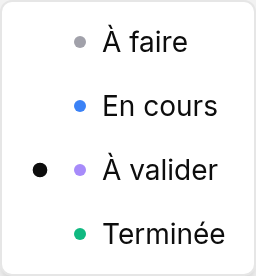 Team view · select À valider (To approve).
The client confirms
Share the card. The client enters their name and selects Approve: the card moves to Done. They can also request changes.
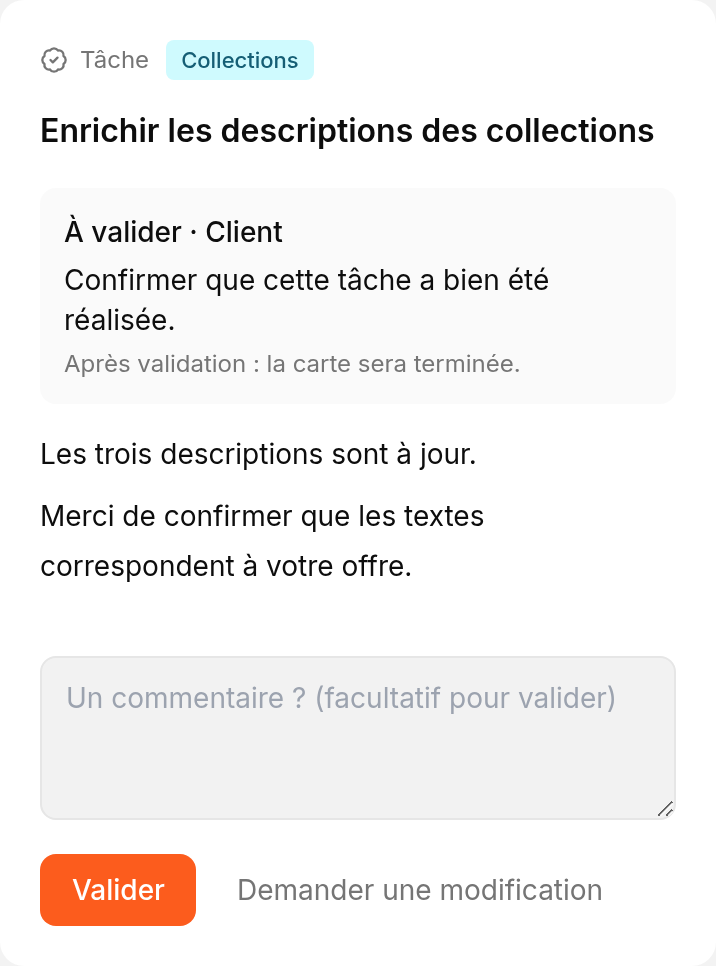 Client view in French · the same card, through its shared link.
Request approval of a specific point
Inside the card, choose Add → Request approval. Specify what needs agreement, who should respond and what happens next: resume work or complete the card.
For example, approval of a content outline allows writing to resume. A request for changes returns the card to In progress. A free-text answer to a question does not automatically complete it.
Give the client access
Use Share to select the cards to send. The client sees their descriptions, shared comments and responses. Internal comments remain private.
Anyone with the valid link can view the selected cards and respond. Naming an owner or reviewer indicates who is expected to reply, without restricting access to that person. The link can expire or be revoked.
Track progress
To do → In progress → To approve → Done
Move cards in Kanban or change their status inside the card. When approval is unnecessary, move straight from In progress to Done.
Two options under Add explain what prevents progress:
- Blocker: an obstacle such as “site access missing”. The card keeps its stage.
- Dependency: another card to complete first, such as “Publish the page” before “Check its indexing”.
Dependencies do not automatically move other cards or recalculate due dates. List, Kanban and Planning show the same cards.
Add useful context
| Where? | What belongs here? |
|---|---|
| Description | The expected work, links and details specific to the card. |
| Comments | Discussion about the card, internal or visible to the client. |
| Project note | The brief and decisions that concern the whole project. |
| Subtasks | A checklist inside the card. An action with its own owner or deadline can become a separate card. |
| Labels | Cross-cutting markers such as “France” or “Content”. |
Open a card to change its owner, priority or due date. Optional details live under Add. The Inbox collects items to review before organising them on the board.
Work with your assistant
Cuik MCP lets an assistant manage cards and take project notes. Specify the project, then adapt one of these examples:
Prepare an action plan
Based on this analysis, propose an action plan to improve qualified enquiries.

Separate actions from questions for the client.
Do not save anything until I have reviewed it.
Create the agreed cards
Create the cards we agreed on in the “Service pages” subject.

Put context in their descriptions.
Keep the overall brief in a project note.
Confirm completed work
Move “Rewrite the SEO audit page” to To approve.
We simply need confirmation that the work is complete.
Approve a specific point
On this task, ask Marie to approve the proposed outline.
Work should resume after her approval.
Find questions awaiting an answer
List the project’s questions with their existing answers.
Identify unanswered questions and those whose answers appear incomplete.
The assistant reads card details and responses to identify questions awaiting an answer; MCP has no dedicated “unanswered” filter.
Create the sharing link in Cuik. MCP can prepare the selection but cannot generate that link. Naming a reviewer sends no invitation; the client responds through the shared link.