
Connect Cuik to an AI assistant
One remote MCP address, OAuth sign-in and a first read-only analysis with Claude, Codex or ChatGPT.
On this page
Choose your setup
Open the interactive guide: choose Connecteur for ChatGPT or Claude, and Installation MCP for Codex or Claude Code. Both use MCP; their setup differs.
The remote server is https://mcp.cuik.io/mcp/server. It uses OAuth and does not require running a Cuik server locally.
Find your key under Cuik → Settings → API. Use the copy button to enter it in the Cuik authorization form.
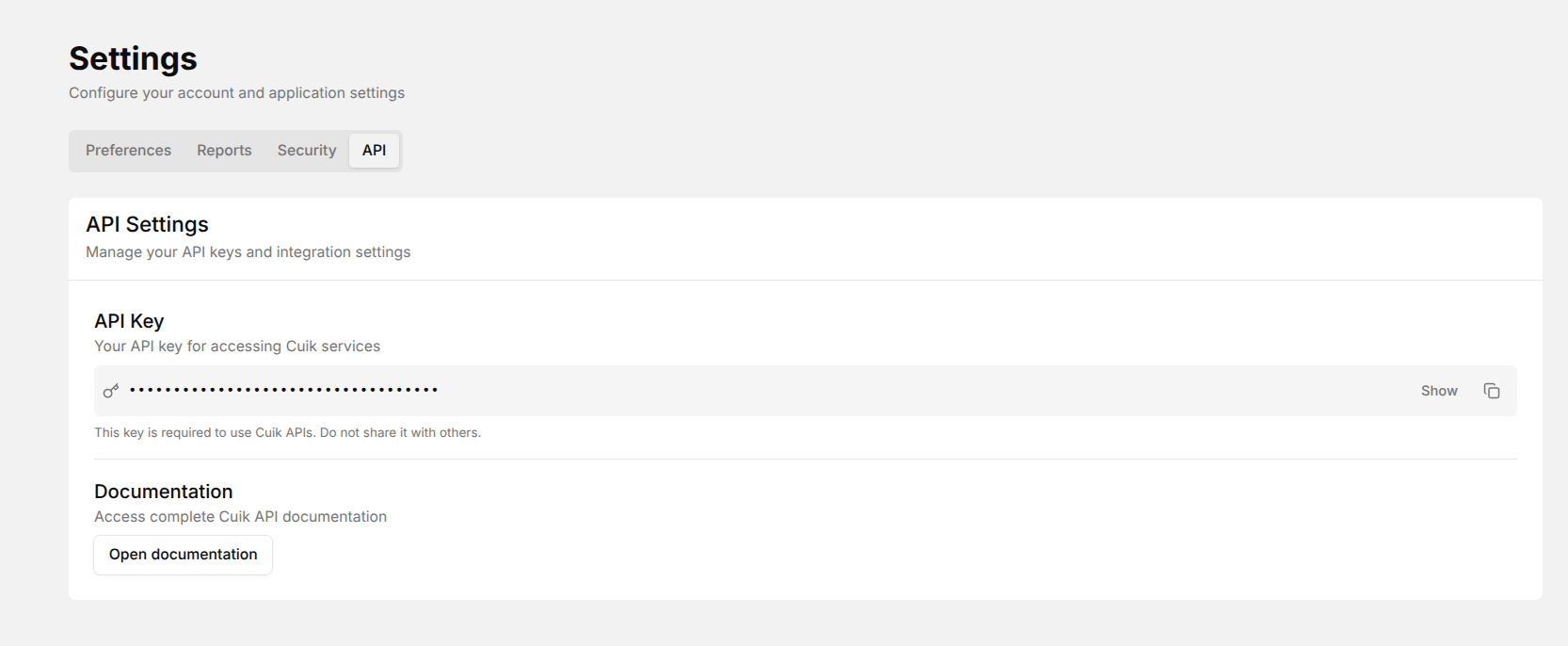 Find your key in the API tab. Click the screenshot to enlarge it.
Codex (OpenAI)
With Codex CLI installed, add Cuik and authenticate:
codex mcp add cuik --url https://mcp.cuik.io/mcp/server
codex mcp login cuik
codex mcp list
Enter your Cuik key on the Cuik authorization page, grant access, then open a new Codex session. If a cuik entry already exists, check its configuration before adding another. Codex documentation.
Claude Code (Anthropic)
claude mcp add --transport http cuik https://mcp.cuik.io/mcp/server
claude mcp list
Launch Claude Code, enter /mcp, select Cuik and authenticate through the Cuik page. Claude Code documentation.
Claude web or Desktop: connector
Open Customize → Connectors → + → Add custom connector. Name it Cuik, paste the server URL and leave the advanced client ID and secret fields empty. Add it, then select Connect. Authorize access on the Cuik page using your Cuik key. In a new conversation, enable Cuik through + → Connectors. An administrator may need to add the connector first in a team workspace. Claude guide.
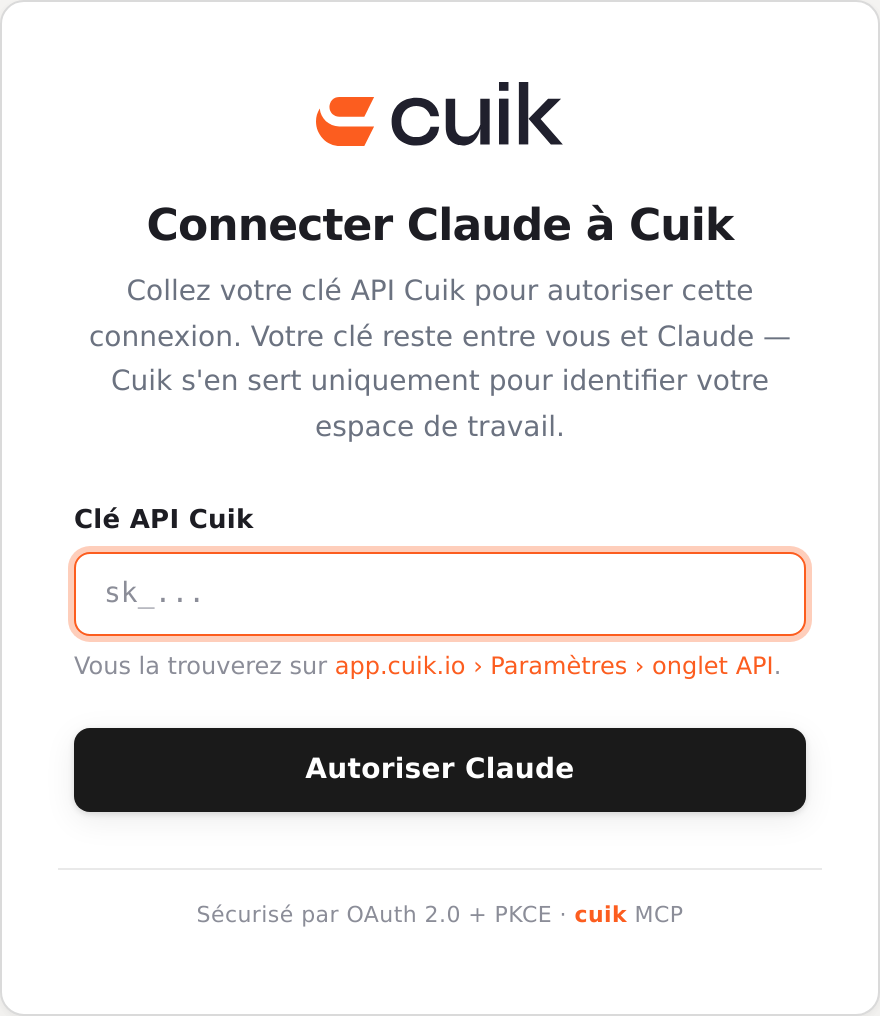 Paste your key into the Cuik form, then authorize Claude. Do not paste it into the chat.
Test with a real question
In a new conversation, enable Cuik in the available tools and send:
Use Cuik to list my five latest crawls.
Show the site, status and ID for each crawl.
Do not start a crawl or change any data.
Check that the assistant calls a Cuik tool and returns your sites or an empty list. Compare an ID with the crawl list. Generic SEO advice does not prove that the connection works.
Next, using an existing ID:
For crawl ID CRAWL_ID, show five pages with HTTP errors
and their response codes. Only use existing collected data;
do not start another crawl.
An empty result is normal if there are no error pages. GSC and GA4 questions require the corresponding sources to be connected to Cuik.
Troubleshooting
| Symptom | Check |
|---|---|
| Cuik is missing | Check the full URL https://mcp.cuik.io/mcp/server and enable the connector in a new conversation. |
| The connection expired | Reconnect from your assistant’s MCP settings. |
401 / 403 |
Check the key used for authorisation and your Cuik account permissions. |
| A tool is missing | Refresh the tools in your assistant. Older local installations follow a separate release schedule. |
The MCP can create or modify data within your account permissions. Keep confirmations appropriate to your usage. For ChatGPT, follow the dedicated connection guide.